3. Manage your content
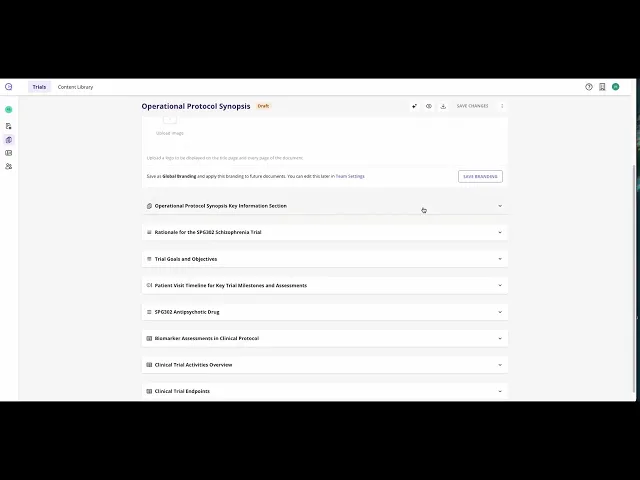
Summary
This tutorial explains how to manage generated trial content in the content hub. After clicking on the generated content cell, viewers can use tabs to filter two created reports, a pre-screening form and a landing page. On the right side, they can create another language version, preview, download, or update the content status, with drafts saved by default and publishing available to track progress. Preview lets users view in preview mode, and Edit mode allows changes followed by Save Changes, with options to switch status, add languages, or download. To return, use the breadcrumbs in the top left corner.